Reduce Image Size in KB Online
Resize or compress photos to an exact file size in KB — 20 KB, 50 KB, 100 KB, 200 KB or 500 KB. For a limit in megabytes, use Reduce Image Size in MB. Everything runs in your browser: your photos are never uploaded or stored.
Measured example: a 2.26 MB photo with the 50 KB preset
We ran a phone photo (4160 × 3120 px, 2.26 MB, JPG) through the tool on this page using its 50 KB preset. Full size could not fit this limit at a clean quality, so the tool reduced the pixel dimensions to 30% and saved at 43% JPEG quality. The file went from 2.26 MB to 49 KB. The cost is fewer pixels and softer fine detail; the tool chose that over keeping all 13 megapixels at a much lower quality.
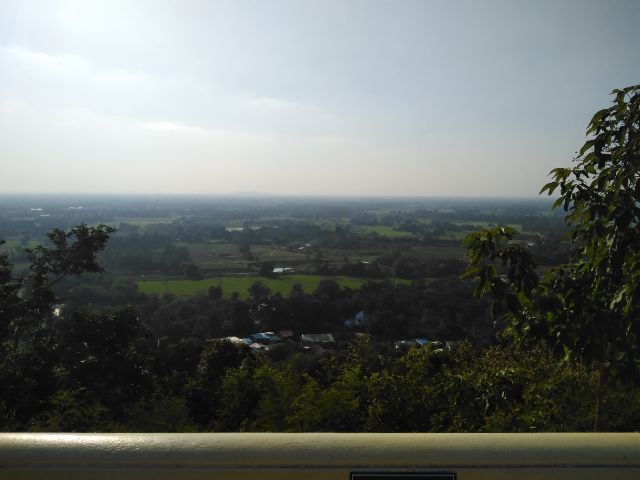
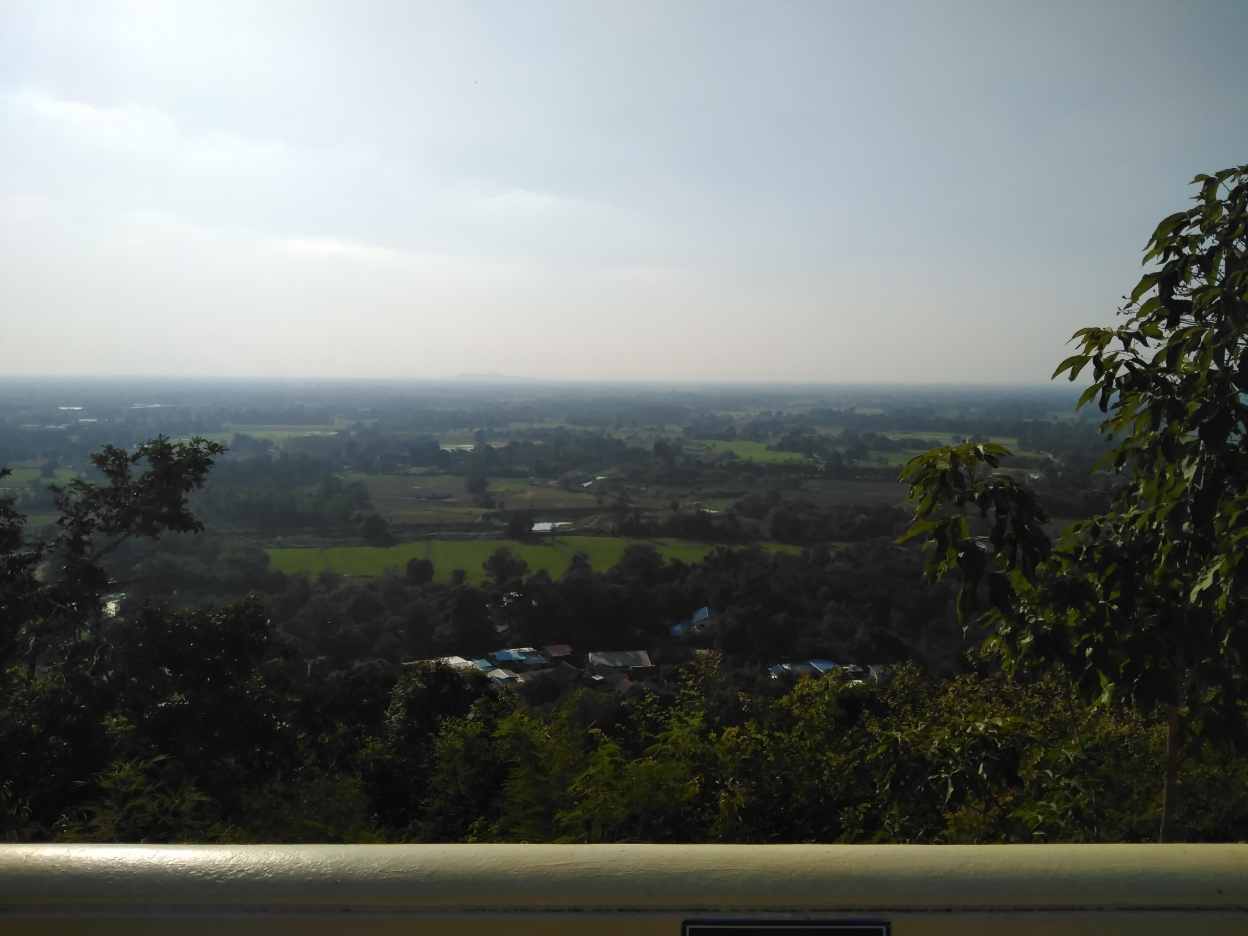
The sample is a demonstration photo that ships with this page: Random landscape photo I took by Philsacor, released under CC0, with its camera and location metadata removed. Sizes were measured on 2026-11-15 in Chrome 157.0.8103.78; browsers encode JPEG differently, so your figures can differ. Your own image is processed in your browser and is never uploaded. Download the sample (2.26 MB) to repeat this yourself.

How to reduce image size in KB online
Follow these simple steps to resize or compress an image to your required target size:
- Select your image — drop or select a JPG, PNG, or WebP photo from your computer or smartphone.
- Set your target file size — select a preset chip (such as 20 KB, 50 KB, 100 KB, or 1 MB) or enter a custom target KB/MB value.
- Specify optional pixel dimensions — enter width and height in pixels if required by an application form.
- Process & Preview — the tool dynamically finds the optimal quality setting and shows your resulting file size in KB.
- Download — click download to save your resized JPEG directly to your device.
Understanding file size reduction vs pixel resizing
There is an important distinction between reducing file size in KB and resizing pixel dimensions:
- File Size (KB/MB): How many kilobytes or megabytes the file consumes on storage. Reducing file size adjusts image compression quality so the file fits upload ceilings.
- Pixel Dimensions (Width & Height): How many pixels wide and tall the image is (e.g. 200×230 px). Changing pixel dimensions alters the visual canvas area.
When you set a target file size like 20 KB, 50 KB, or 100 KB, this tool looks for the best-looking version that fits. If your photo fits at a clean JPEG quality, the original pixel dimensions are kept. If the limit is so tight that full size would need a very low quality, with banding and blocky edges, the tool makes the picture proportionally smaller and keeps the quality cleaner. To keep exact dimensions, type a width or height under More options: typed dimensions are never changed.
Common target sizes: 20KB, 50KB, 100KB, 200KB, 1MB
Different portals enforce specific file size budgets depending on document types:
| Target Size | Common Application Use Cases | Dedicated Tool Link |
|---|---|---|
| 10–20 KB | Signatures, thumb impressions, and small exam uploads | Compress Image to 20 KB · Signature Resizer |
| 20–50 KB | Passport photos, visa applications, and student ID photos | Compress Image to 50 KB · Exam Photo Resizer |
| 100 KB | Scanned mark sheets, certificates, and identity cards | Compress Image to 100 KB |
| 200 KB | Mixed document scans, resume photos, and multi-page forms | Compress Image to 200 KB |
| 500 KB – 1 MB | High-resolution document uploads, portfolio images, and web graphics | Compress Image to 500 KB · Reduce Image Size in MB |
If you need to increase a file size because a portal sets a minimum threshold (such as "at least 20 KB"), visit our Increase Image Size in KB tool.
Supported image formats & limitations
This tool accepts JPG, JPEG, PNG, and WebP source images. All processed output is provided in standard JPEG (JPG) format.
- JPG / JPEG: The universal format for photo uploads. Supports adjustable compression quality to reach exact KB targets.
- PNG: Lossless format. Because PNG does not support variable compression quality, PNG uploads are converted to optimized JPEG to meet your requested KB size.
- WebP: Modern web image format. Converted to JPEG for maximum compatibility with government and portal upload validators.
Note on exact KB limits: Achieving an exact file size depends on image complexity, original resolution, and compression boundaries. While our binary-search engine calculates the sharpest possible quality at or below your max target, extremely high-resolution images targeting small budgets may require cropping or proportional dimension scaling.
Privacy & security: images never leave your browser
Your privacy is fully guaranteed. All image decoding, resizing, compression, and file encoding are performed 100% locally in your web browser using JavaScript and the HTML5 Canvas API. Your images are never uploaded to any cloud server, stored in any database, or transmitted across the internet.
Troubleshooting photo uploads
- File rejected for being too small: Use our Increase Image Size in KB tool to pad file size without altering image appearance.
- File rejected for wrong dimensions: Enter the required pixel width and height into the tool's dimension fields alongside your KB limit.
- Signature looks blurry: Use dark ink on white paper, crop tightly around the signature using our built-in cropper, and visit the Signature Resize tool.
Questions
How do I reduce image size in KB online?
Upload your photo, select or enter your target KB limit (e.g. 20 KB or 50 KB), and click Resize Image. The tool compresses the photo locally in your browser and provides a instant download.
Can I resize an image to exactly 20KB, 50KB or 100KB?
Yes. Entering a maximum limit such as 20 KB, 50 KB, or 100 KB ensures the processed result stays at or just below that exact file size. You can also specify a minimum KB limit if required.
Is my photo uploaded to any server?
No. All processing happens entirely within your web browser. Your images are never uploaded, stored, or sent to any server.
What is the difference between reducing file size in KB and changing pixel dimensions?
Reducing file size in KB adjusts compression quality so the byte count meets upload limits. Changing pixel dimensions changes the width and height of the image frame.
Why was my PNG converted to JPG?
PNG is a lossless format that cannot be tuned to a specific byte size without converting to JPEG. Converting to JPEG allows precise compression control for upload forms.
What should I do if a form requires a signature under 20 KB?
Use our dedicated Signature Resize tool or pick the 10–20 KB preset on this page. Crop tightly around the signature for the sharpest result.